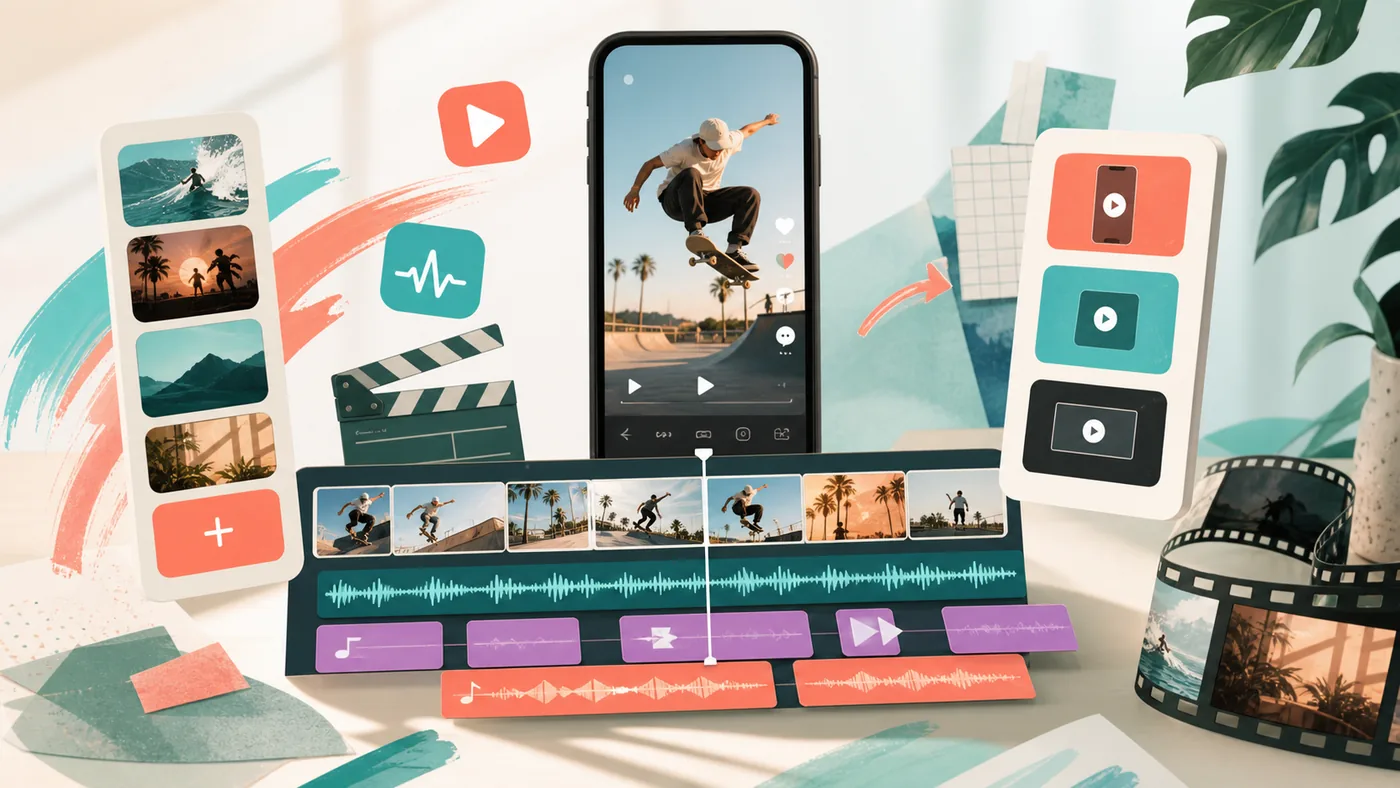
CapCut is a versatile video editing app suitable for both beginners and advanced users. With intuitive tools and a wide range of features, CapCut makes it possible to create high-quality videos directly on a smartphone or tablet. The app offers numerous effects, filters, and AI-powered tools that simplify the editing process while making it more creative. CapCut is especially popular for social media videos and short clips that need to be edited quickly and professionally.
July 2026 update: what to review now
CapCut is especially relevant in 2026 for fast social video production. AI captions, templates, effects, music, text-to-speech, background features, image editing, and short-form formats make it attractive for creators, small teams, and brands with high posting frequency.
Its value is speed, not full post-production depth. For professional brand work, templates, rights for music and assets, export quality, caption review, and approvals should be managed carefully so fast clips do not become inconsistent or legally risky.
Who is CapCut suitable for?
CapCut is aimed at users who want to edit videos easily and efficiently without relying on complex software. This includes:
- Content creators and influencers who regularly produce videos for platforms such as TikTok, Instagram, or YouTube.
- Beginners looking for a simple and free video editing solution.
- Users who want to cut and enhance videos on the go.
- Small businesses or marketers who want to create appealing promotional clips quickly.
- Advanced users who value AI-based features and creative editing options.
Main features
- Simple video editor: Trim, cut, and combine clips with intuitive controls.
- AI-powered effects: Automatic adjustment of colors, filters, and transitions.
- Music and sound integration: Add royalty-free music and your own audio files.
- Text and sticker features: Add animated text and stickers to enhance videos.
- Speed control: Adjustable fast-motion and slow-motion effects.
- Templates and themes: Use pre-made templates for quick video creation.
- High-quality export: Support for common formats and resolutions up to 4K.
- Cloud synchronization: Save and access projects across different devices (depending on the plan).
- Social media sharing: Direct upload to popular platforms.
Pros and cons
Pros
- Free access with extensive features.
- User-friendly interface, suitable for beginners.
- Wide selection of effects and AI-based tools.
- Regular updates and new features.
- Cross-platform use on mobile devices.
- Fast export options with good quality.
Cons
- Some advanced features are only available in the paid version.
- A watermark may be present in the free version.
- Limited desktop version, primarily optimized for mobile.
- Privacy concerns with cloud features, depending on the region.
- Ads and in-app purchases can be distracting.
What Really Matters in Daily Use
With CapCut, the longest feature list matters less than whether the tool gets a clear place in the existing workflow. For video work, the key question is whether footage, captions, edits, rights, and exports can move through one fast process.
For CapCut, start with a small pilot using real material: who provides the inputs, who reviews the result, and where does the output go next?
Workflow Fit
CapCut fits best when short clips are produced regularly and teams turn existing material into many variants for channels, campaigns, or tests. Before rollout, roles, permissions, export paths, and quality control should be explicit; otherwise the tool quickly becomes another storage place beside the real process.
Editorial Assessment
CapCut works best as a production tool for repeatable clips, not as a replacement for a full post-production setup. If long formats, complex color work, or unclear media rights dominate the workflow, start with a lighter or more specialized approach first.
Pricing & costs
CapCut offers a freemium model. The basic version is free and includes many video editing features. For extended access to premium features such as additional effects, ad-free use, higher-quality export, and cloud storage, a paid subscription is required. Prices vary depending on the region and selected plan and may be billed monthly or annually.
Additional comparison points
- InShot: A popular mobile app for video and photo editing with a similar feature set.
- KineMaster: A professional video editing app with extensive tools and multi-layer support.
- Adobe Premiere Rush: A cross-platform Adobe solution for simple and fast video editing.
- FilmoraGo: A user-friendly app with many effects and templates, ideal for social media.
- VN Video Editor: A powerful app focused on ease of use and creative features.
Additional comparison points
Open frequently asked questions
FAQ
1. Is CapCut really free? Yes, the basic features of CapCut can be used for free. A paid subscription is required for premium content and ad-free use.
2. On which devices can I use CapCut? CapCut is mainly optimized for iOS and Android devices. There is also a web version with limited features.
3. Can I export videos in 4K? Depending on the plan and device, CapCut supports export in various resolutions, including 4K.
4. Are there limits on video length? The maximum video length can vary depending on the platform and version; in general, several minutes are possible.
5. How secure is my data with CapCut? Privacy policies should be reviewed before use, especially for cloud features, since storage is regulated differently depending on the region.
6. Can I sync my projects between devices? Cloud synchronization is included in some paid plans, allowing projects to be edited across devices.
7. Are watermarks added in the free version? A watermark may be present in the free version and can be removed by upgrading.
8. Does CapCut support multi-track editing? CapCut offers basic multi-track functionality, but it is less extensive than professional desktop software.